Cannot Enable Ads Script
Completed
Hello,
I am trying to enable the Journey ads script on my blog. When I click on the prompt, I have to login to Wordpress. Then, I arrive at my WordPress Dashboard. Then, I click on the Grow Plugin. There is no mention of Journey on the Grow plugin screen on my Wordpress Dashboard. So, I click on Manage My Account, which takes me to the Journey page. When I click on Finish Journey Setup, it prompts me to click on Enable Ads Script again. And then the process repeats itself (including having to re-login to Wordpress every time).
I cannot for the life of me figure out how to move forward with enabling the ads script! Please help! :)
Thank you so much,
Alea
-
Official comment

If anyone experiences this issue in the future, here's a quick troubleshooting guide:
1. If you have issues with the blank page loading, first make sure you're on the most recent version of Grow for Wordpress. Then make sure you're connected to your Grow account properly in the plugin. If you're still seeing a blank page after checking the connection, log out of your Grow account in the Grow for Wordpress plugin and then log back in to see if that does the trick.
2. Try the above after clearing your browser cache.
2. Try the above in an incognito window and in a different browser to rule out caching or browser extensions.
4. Instead of clicking on the link in your Journey dashboard, make sure you're connected to your Grow account in Grow for Wordpress and then use the below link and replace ‘sitename’ with your domain: https://sitename.com/wp-admin/admin.php?page=grow-journey-enable. Also try https://www.sitename.com/wp-admin/admin.php?page=grow-journey-enable if the former doesn't work.
5. If none of the above works, you can manually install the ad script following these instructions and the ads.txt file following these instructions.
6. If Journey is unable to detect the script, try temporarily disabling firewalls and security plugins, clear out all caching, and try again.
-
Hi Alea!
Thanks for writing in. Could you try following the instructions from this thread and letting us know if it does the trick?
I'll also provide the instructions here for convenience:
Could you try going to your Journey dashboard, right-clicking “Enable Ads Script”, and then clicking “Copy link address”(Chrome) or “Copy link”(Safari):

Once you have that link, you can then go to a tab where you're logged into the WordPress admin, and then just paste in the link that you've copied.
If that doesn't work, try copying the last part of the same link (the part after wp-admin/) and then pasting it at the end of your site's URL when logged into WordPress.Just let us know if that works or if you're still having issues!
0 -
Ok, I followed the directions and was able to trigger the Enable button screen. I clicked it and it took me to the Journey Successfully Enabled screen. When I click the Return to Journey Onboarding button, nothing happens. And when I go back to onboarding through Grow, it looks as if I never enabled the ads script.
I run my Wordpress website and use BigScoots. I sent a message earlier to them to clear my server-side cache and I manually cleared my cache on my side.
Any other recommendations? I think I could probably figure out how to place the ads script on my header manually, but I'm not sure if I can do much else, from a technical point of view.
Thank you!
Alea
0 -
Whatever y'all did worked! Thank you so much! I'm all set up now. :)
0 -

Hello, I am also having a similar concern to this one. Each time I click on Enable Ads Script it takes me back to a blank page on my wordpress dashboard. It doesn't show me the Journey box that says enable. It's just a blank screen. I've tried everything from clearing my cache to contacting my host. I also just tried the 2 options that are listed above in this thread and that didn't work either.
0 -
Hi Marsha,
Could you confirm you're on the most recent version of Grow for WordPress? If you see a prompt to update the plugin in your plugin list, go ahead and update, clear out any caching plugins, and then try again and let us know if that works.
If you're already using the most recent version of the plugin, could you try logging into your WordPress admin in an incognito window and then going to the following URL to see if that does the trick? Just replace ‘sitename’ with your domain: https://sitename.com/wp-admin/admin.php?page=grow-journey-enable
0 -
Hi Rachel,
Yes I'm using the most recent version of the Grow plugin, it says Version 1.3.0. I remember updating it maybe 2 days ago and clearing out the cache.
I just tried using the URL in a incognito window and replacing sitename with my domain and unfortunately that didn't work either.
0 -
Sorry that didn't work! So that we can get a better idea of what might be happening, could you try doing this in a different browser as well? Then if that doesn't work, could you send us over a Loom video of the behavior you're seeing? That will hopefully help with troubleshooting.
Thank you!
0 -

Did you ever figure this out? I'm having all of the same above issues.
-1 -

Hello Support - Following up on this thread. I have done the above steps of using the link and replacing ‘sitename’ with my sites domain https://www.sitename.com/wp-admin/admin.php?page=grow-journey-enable.
That works, and via Grow plugin on Wordpress i complete the steps and get the “Journey Successfully Enabled!” But like Alea, nothing happens when I click the “Return to Journey Onboarding” button. And when I go back to onboarding through Grow, it looks as if I never enabled the ads script.
When I click “Ads.Txt is Added, I'm ready to Launch!” (once I manually have to go back to my grow dashboard because the link as stated above will not take me there) I get the following error message: “We can’t seem to find your Ads.txt file. Check our FAQ for troubleshooting options.”
And nothing with that FAQ is helpful or works.
I have cleared my caches through my CDN and host, and nothing is working.
Can you please help?
Thank you!
0 -
Hi Lauren Stuart ! If you go to yoursitename.com/ads.txt you'll see a one line Google Adsense ads.txt file instead of the Journey ads.txt file. This will need to be removed for the Journey ads.txt file to work, and your host should be able to assist with removing it.
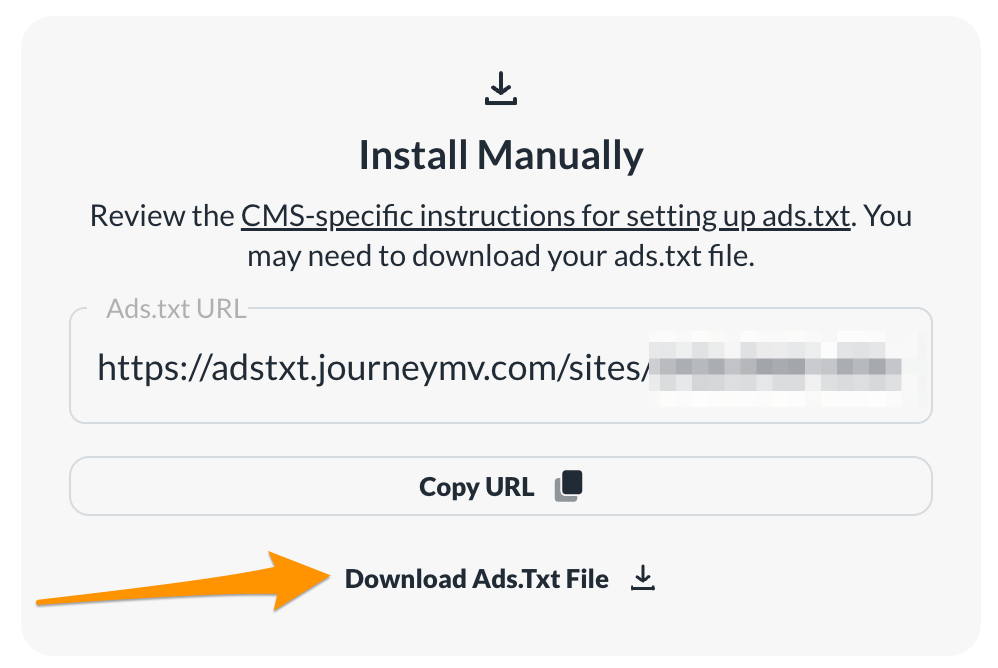
You'll know the Journey ads.txt file is working when you visit yoursitename.com/ads.txt and the contents are the same as the Journey ads.txt file that you see when you click “Download Ads.txt File” in the onboarding process.
 0
0 -
Support, thank you! Quick clarifying question.
It looks like I can remove the Google Adsense Ad.text line from the Ads.txt section within my Wordpress settings myself vs going through my host. But when I go copy/paste the Journey ads.txt URL I get a prompt that says “Your Ads.txt contains the following issues: Line 1: Invalid record.”
Do I still need to contact my host to remove the Google Adsense Ad.text and add the Journey ads.txt, or is the above a separate issue that I can resolve by myself with your assistance?
0 -
Hi Lauren Stuart ! It sounds like this ads.txt section in WordPress might be coming from a specific plugin or theme field since WordPress doesn't have one by default, so I'm not sure why that error would be occurring. It's likely fine to just go ahead and try to publish the Journey ads.txt file, but you could also ask your host for assistance since we aren't necessarily familiar with all of the different ads.txt insertion services and wouldn't want to cause any issues on your site!
0 -
Support - this worked Thanks you so very much for your help! 5 star review!
0 -
Awesome! Very glad to hear that did the trick and you're so welcome :)
0 -

Hi Rachel, I just started my onboarding process. I have the same issues that Lauren had and went through all the troubleshooting issues. Here is the message I received: We can’t seem to find your Ads.txt file. Check our FAQ for troubleshooting options.
Unfortunately, even if I want to install it manually, I don't see the download ads textfile. Can you help?
0 -

Hey mychefsapron ! I took a look at your site, and it looks like we're not seeing the Journey Script and Ads.txt file in place. When you have a moment, could I have you follow through our How to Install Your Journey Ad Script on WordPress help doc, and let us know if you get stuck at any time during the process?
If you do get stuck, providing as much information as you can about what exactly you're seeing can help us troubleshoot further - thanks so much!
0 -
Hi Ryan, I am already past that stage. I tried to add the Ads.txt file first, but it just directed me to my dashboard. I did all the caching steps and other troubleshooting steps, including caching on the server level, but nothing was resolved. So, I even asked my host to add the Ads.txt file for me manually. They did. Now, when I want to continue my onboarding journey, I am being asked to install it manually. I am on WordPress and have the latest Grow plugin. I am stuck now. Can you help.
0 -
Hi Ryan, you can close this request. I added it manually with the help of Bigscoots and processed everything this morning. Thank you!
0 -

Hello,
I am having a similar problem with being able to login to my grow account via the plugin. I received an email confirming that I have been accepted into the journey:
>I click “get started now”.
>I then select the “Instal Grow With Wordpress” option
>I click enable Ad Script>
>new window opens in wordpress grow plugin with error “Your site must be connected to Grow to access that functionality. Please connect to Grow using the button below and then try again”
>Click “connect or create account”
> new window pop-up, “lets connect your grow account”, I log in, I “grant permission” and I “return to wordpress” where nothing has changed. It is still showing that I need to connect my account.
I have read and followed instructions here and then eventually in this thread here. I have tried all suggested:
- Logout and log back in to grow
- Clear cache in WP rocket plugin as well as contacted host Wpopt who confirmed “There is no server level caching. Any caching is controlled by your caching plugin!” when I asked for server level caching clearing
- Repeated all of the above steps incognito in both Chrome and Safari browsers
After failing with the above attempts I decided to manually do this and not use the wordpress plugin in option. I copy and paste the script code in my header. It works and I got to the next step, which is the install Ads.txt.I try to follow the instructions for manually installing Ads.txt for WordPress from this article but there the message in this article looks different to mine, I don't have a purple “set up Ads Script button” instead mine just has “copy URL” and then the purple buttons shows “Adx Txt is Added. I'm Ready To Launch”. I have no where to go from here.
I have decided that I should return to the original issue of not being able to login in to grow via the plugin. I have now deleted the script code from my header whilst I await further direction from you.
My website is simplegreensoul.com
Many thanks!
Georgia
0 -
Hi Georgia Papas ! If the Grow plugin still isn't working for you, this would likely be a firewall or security setting your host would need to help troubleshoot. If you're unable to get the plugin working, you'll want to use the manual installation.
As for the ads.txt file, the article you reference is for installing the ads.txt file with the Grow plugin. If you're manually installing the ads.txt file, here's an article goes over how to properly manually install/update the ads.txt file, and we have another in-depth article here as well that goes over different ways to troubleshoot a missing/out of date ads.txt file that was manually installed.
Thanks!
0 -
Hi Rachel,
I have added the code to my head script but I am still stuck with the error message
“Set Up Ads.txt On Your Site”
The install manually option gives me this URL code
https://adstxt.journeymv.com/sites/63dae450-5960-426b-9df9-85fc5e7b3355/ads.txt
but it is unclear what I am meant to do with it? I have checked alll of your articles and this is not on there.
Thanks
Georgia
0 -
Hi Georgia Papas ! You'll want to click the “Download ads.txt file” button, copy the contents, and then add the file to your site's root directory. It looks like I linked the wrong article, so sorry about that! Here's the correct article on how to manually install the ads.txt file. If you're not familiar with editing site files, your host should be able to assist with this.
Thanks!
0 -
Hi Rachel,
My host has requested for you “to provide your IP address that their service is using to connect to your site so that I can see if it's being blocked by the firewall?”
Are you able to provide this? I'm yet to try the manually adding ad txt file.
Thanks
Georgia
0 -
Hi Georgia Papas ! They'll likely want to make sure our user agent is allowlisted as opposed to a specific IP address. Our user agent is
MediavineMetadataParser, so I would have them check on that! That said, it looks like you were able to successfully set up an ads.txt redirect to our server and I don't see any errors on our end, so you should be all set.Thanks!
0 -

Hello, I am having issues with getting this script running. I tried connecting via the plugin, and it appears to be connected on the Wordpress side of things, but according to my grow account, it can't be detected. I instead proceeded to input the code manually into my header, and it's visible when I inspect my home page, however on the grow side, it's saying the script is undetected. I've cleared my cache on the Wordpress side, the Siteground side, and via my web browser. I've also tried going incognito, but the issue persists.
0 -
Hi Juliana Wynkoop ! I don't see the Grow script on your site, even when I bust the cache. You'll want to make sure the exact script in your dashboard is what you're adding to the <head> area of your site and then to clear out all caching.
0 -
Support I've made sure the script is identical to what is shown on the Journey website. For reference, here is the code I'm being asked to enter:
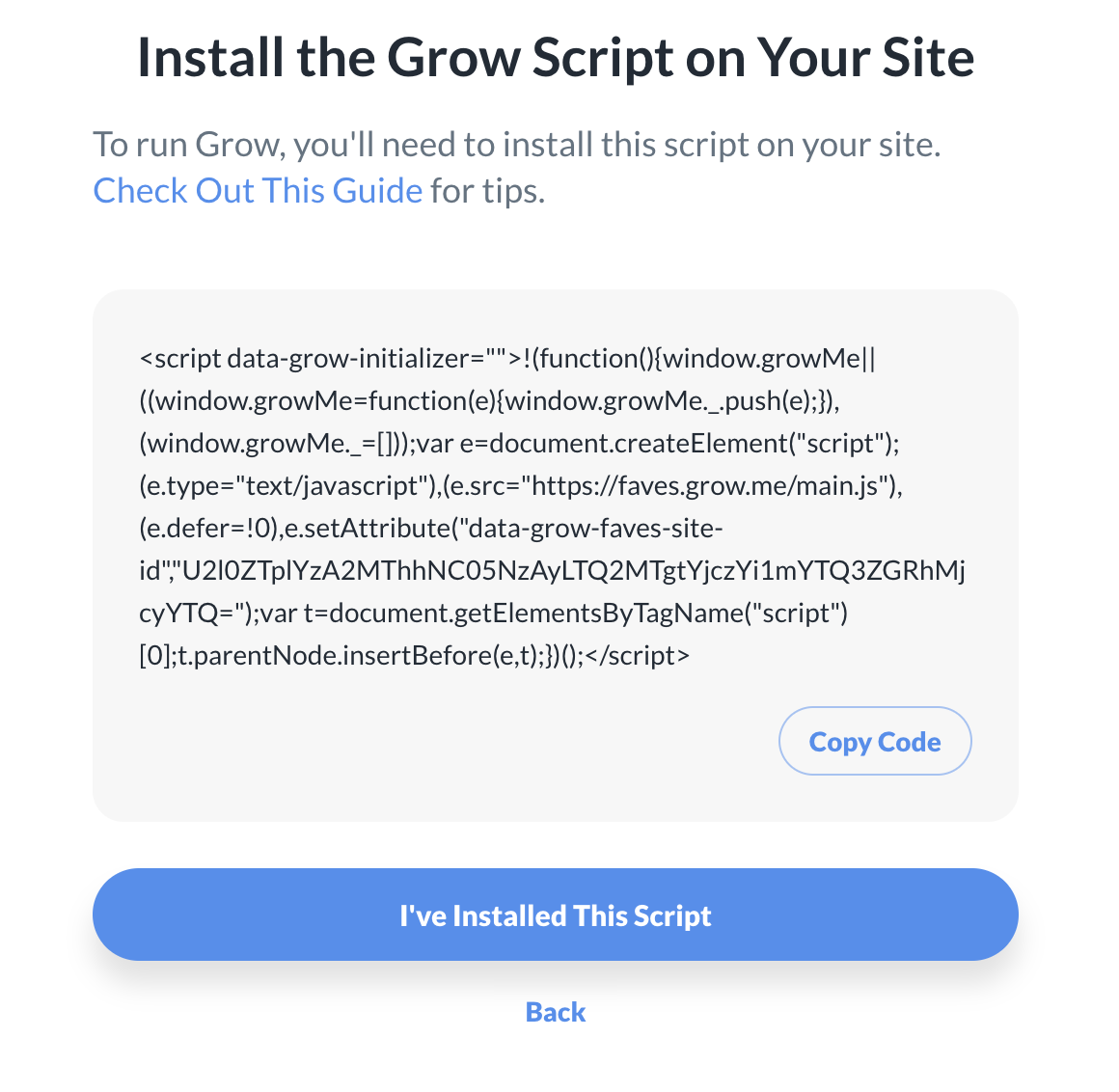
How the script is being input into my header via a plugin:
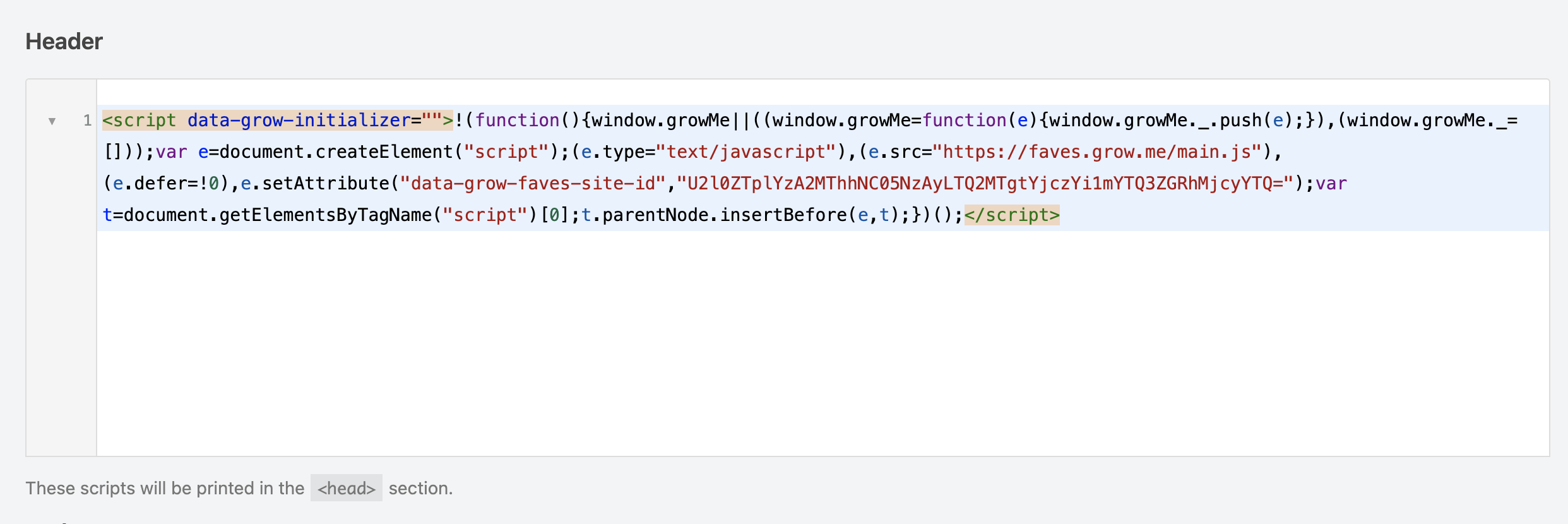
How the script looks when I inspect my website's homepage:
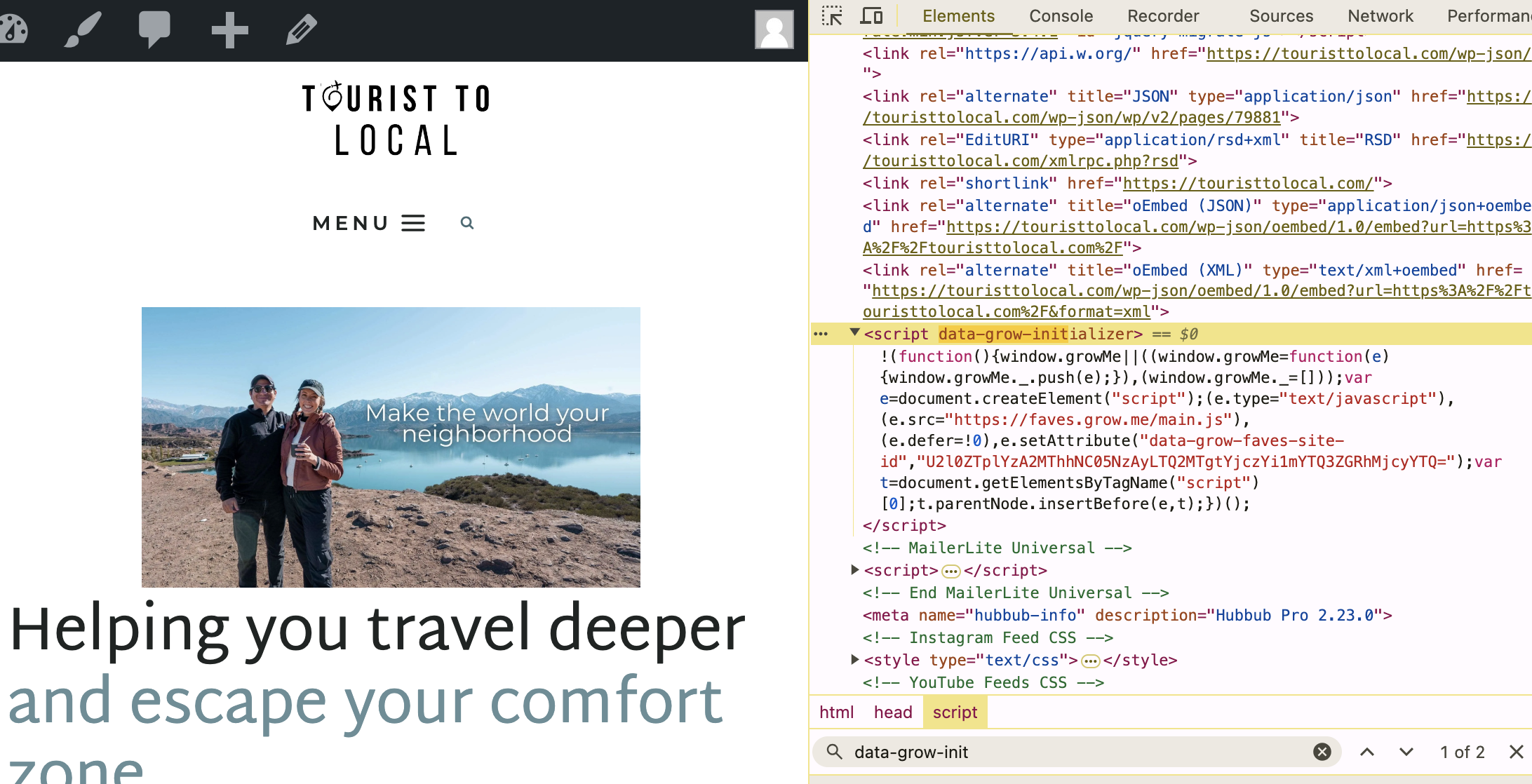
I'm still getting errors that it's not being detected.
0 -
Juliana Wynkoop it looks like the Grow script is being optimized by Siteground Optimizer, which is why we weren't seeing it in the source code initially and why the dashboard isn't picking it up. You'll need to exclude the Grow script from being optimized by this plugin, and then the dashboard should be able to connect. You can read more about that here. Thanks!
0
Journey is Self Supported
Please sign in to leave a comment.
Comments
29 comments