Error Message: “Sorry, you are not allowed to access this page”
Featured Completed
Hi!
I've clicked on the “enable ads script” and instead of being routed to my Grow for wordpress plugin I am sent to this page https://finefoodsblog.com/wp-admin/admin.php?page=grow-journey-enable
And there is an error box on the page that says “Sorry, you are not allowed to access this page”
I wasn't actually signed in to Grow from my site the first time I tried it, but now it's connected. I've signed out and signed back in and cleared the cache and it's still not working.
-
Official comment

Debra Cummings Ashley Schuering, it's possible that you're not on the latest version of the Grow For WP plugin. Would you be able to log into your WordPress Admin, check the plugins page, and see if there's an update available for Grow For WP? If there is, just get that updated and then go back into your Journey dashboard and click Enable Ads Script. Grow For WP should be updated to version 1.2.0:
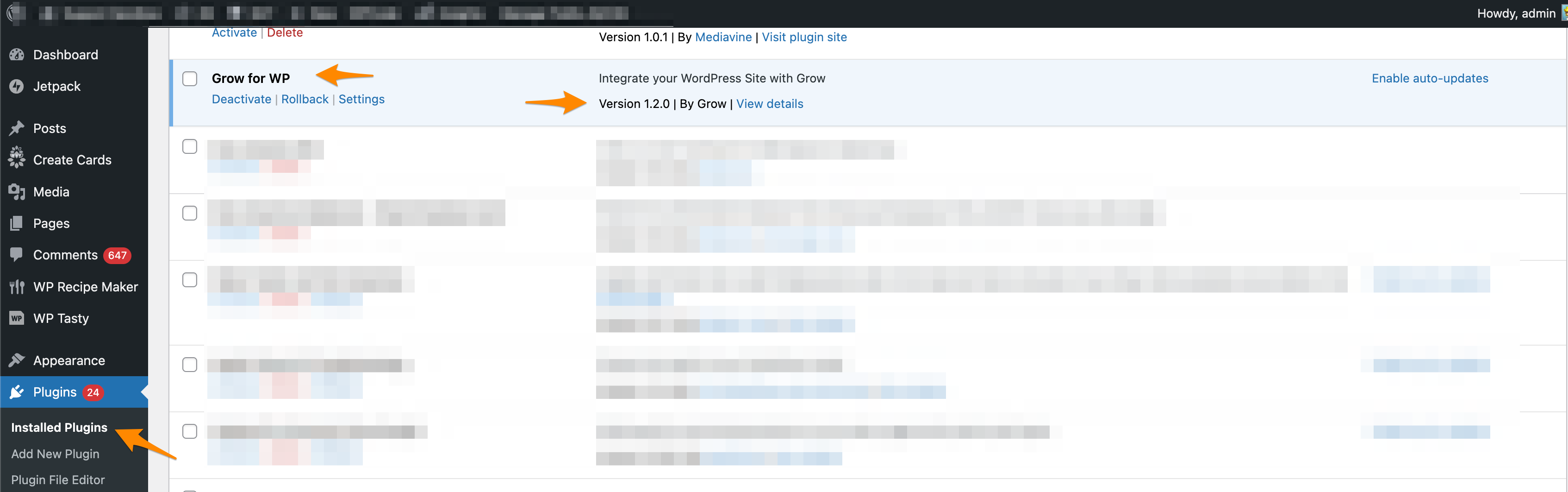
Let us know if that does the trick!
-

Same here.
0 -
Makes me feel better to know it's not just me! LOL!
0 -
SAME! 💛 I always think technology just hates me lol.
0 -
OMG Jacob, that was exactly the problem. I think it even said in the onboarding info somewhere to make sure the plugin was updated first! Proceeding now… Thank you!
0 -
Awesome, that's great to hear!
0 -
Hey y'all! I don't have the plugin installed; I think I had a friend incorporate the Grow script into my site. Any chance you know how to fix that? 😬
 0
0 -
In that case, you actually have two options. You can go back to the Journey dashboard, click Install Manually, and then have your friend insert the ad script in the same manner they added your Grow script.
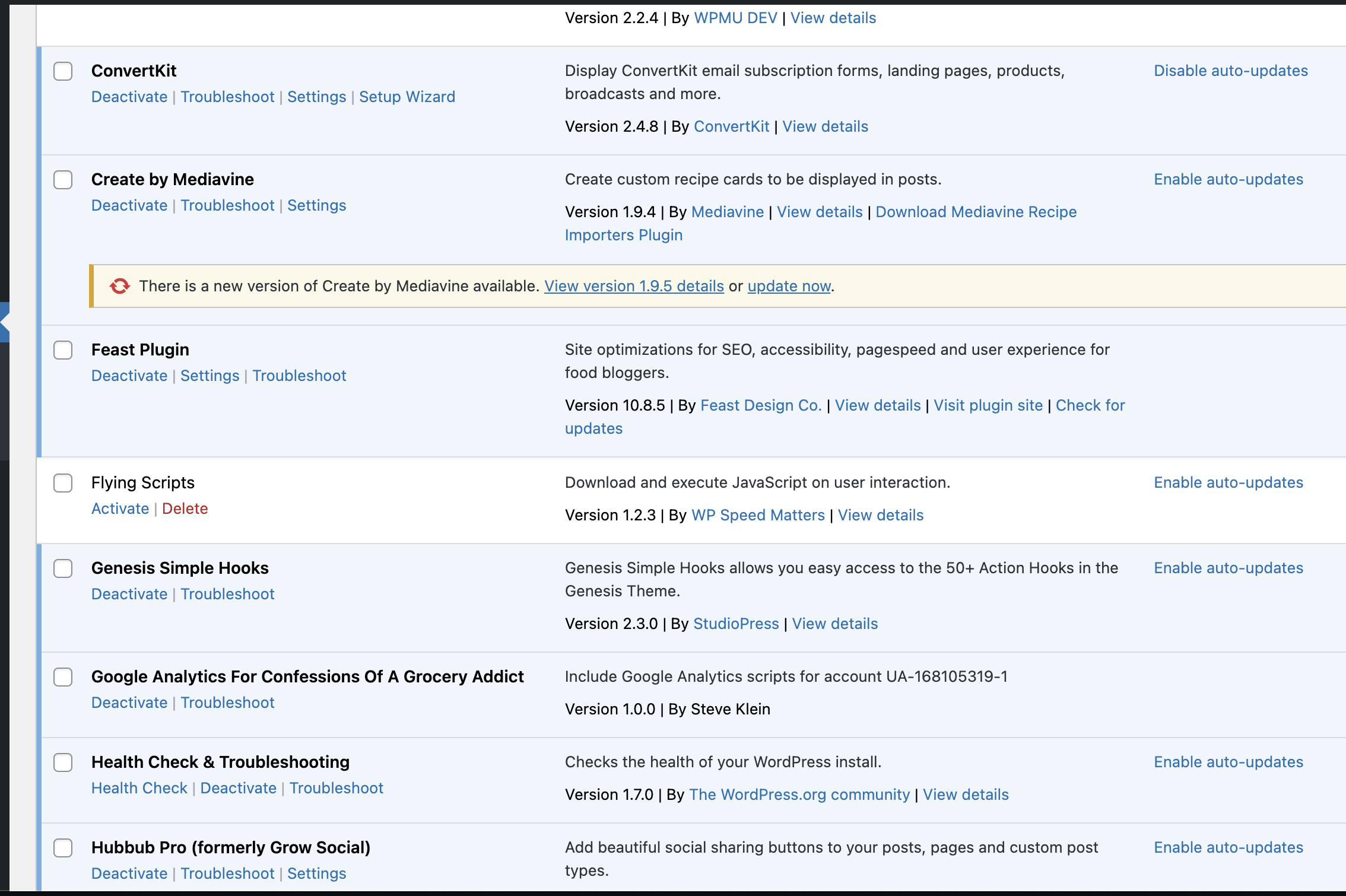
Or you can have your friend remove the Grow script they added and then you can scroll to the top of the plugins page and click Add New Plugin. From there you can search “Grow For WordPress” and you can install Grow For WordPress that way.
After you've installed it, just go to the settings and connect your WordPress with Grow. Just be sure to connect with your existing Grow account/credentials:
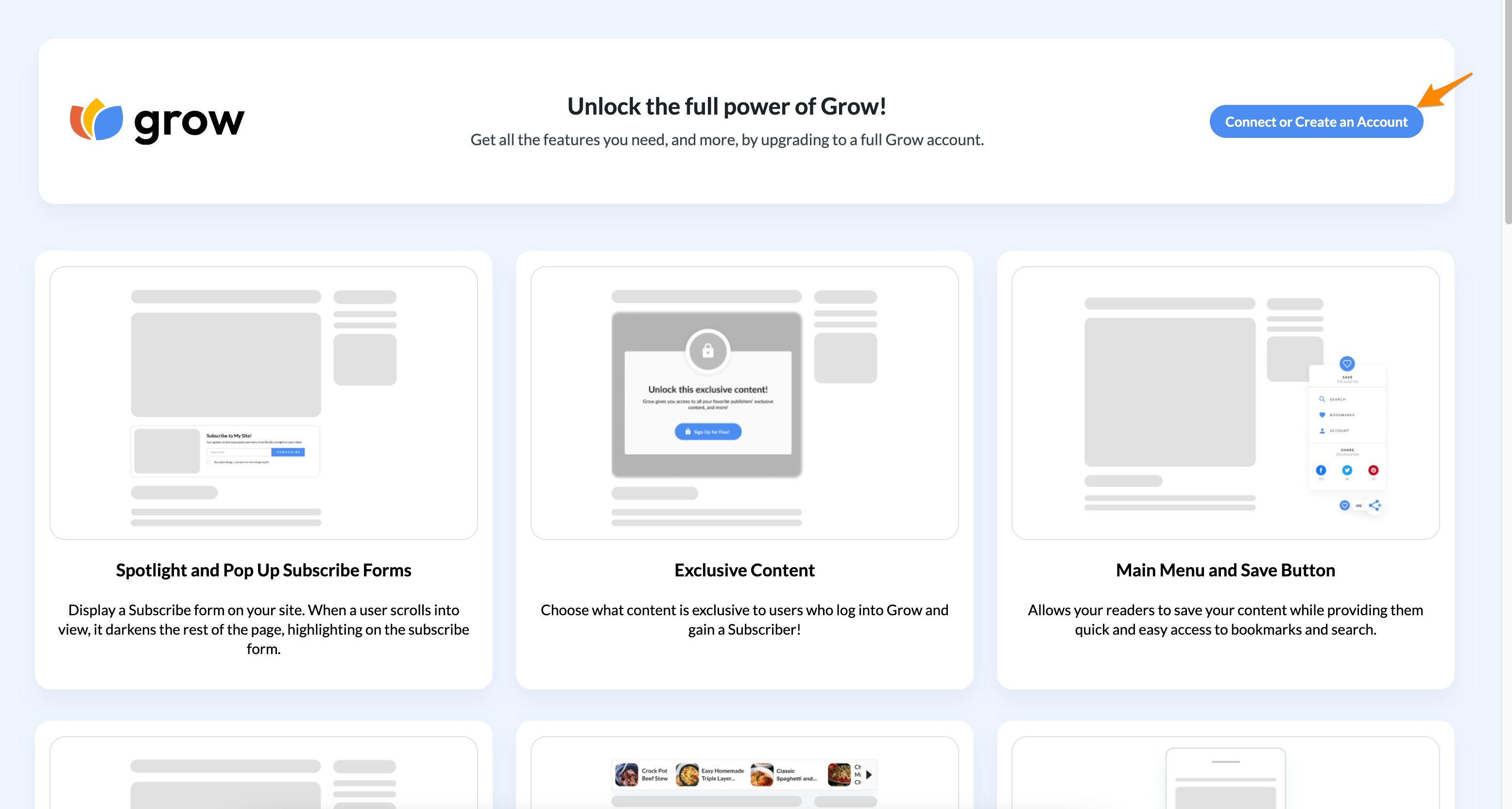
Then finally go back to the Journey dashboard and click Enable Ads Script and that should do the trick. This approach of installing the plugin is actually the preferred option since the plugin will also automatically handle your ads.txt file in addition to inserting the ad script.
0 -

For me, it was because I was using the OG code vs the plugin. :) I installed the plugin and signed in before deleting the old code snippet.
0 -
Ashley Schuering Do you have a code plugin like WPCode? It may be inside one of those plugins. I had mine connected with code through that plugin and was able to simply delete the snippet after installing and connecting the plugin.
0 -

I'm having an issue where when I click enable ads, it just opens up to my log in page. Then when I login nothing comes up after that. Has anyone else had this problem?
0 -
Lita login page to what, your blog?
0 -
yeah sorry just my normal blog login. Despite the fact that I am logged in on other tabs!
0 -
Lita Are you using the Grow plugin or the code?
0 -
Julie Boston I'm trying to use the Grow plugin, but I'm wondering if I should just do the code manually or if I can find a way to make the plugin work.
0 -
Lita I was using the code and I was getting an error message to connect the ads automatically. I think you need to use the plugin to be able to connect it automatically with WordPress. I made the assumption you are using WordPress though. Are you? You could try inserting the code and then installing the ads manually in your ads.txt I suppose?
0 -
Julie Boston I am using Wordpress. I've checked and my user permissions are all correct, I've cleared my cache and the plugin is updated. So, I'm not really sure why it won't go to the correct next step. Support do you have any ideas?
0 -
What I would recommend is logging into your WordPress Admin and then going to the Journey dashboard and clicking Enable Ads Script. Clicking that button should just link you to an area of your WordPress Admin where you can enable the Journey ad script.
Does doing that still just send you to your login page or does it do something different? If it sends you to your login page, could you try a different browser and see if it does the same thing?
0 -
Hi Support yes that is what I'm trying to do. It sends me right to the login page again. I've tried it on safari, google chrome, and an incognito tab on google chrome. I've also restarted all of those programs. Still, no luck
0 -
That's strange! The “Enable Ads Script” button is ultimately a link that takes you to the Journey page of your Grow For WordPress settings in the WordPress Admin. Could you try going to your Journey dashboard, right-clicking “Enable Ads Script”, and then clicking “Copy link address”(Chrome) or “Copy link”(Safari):
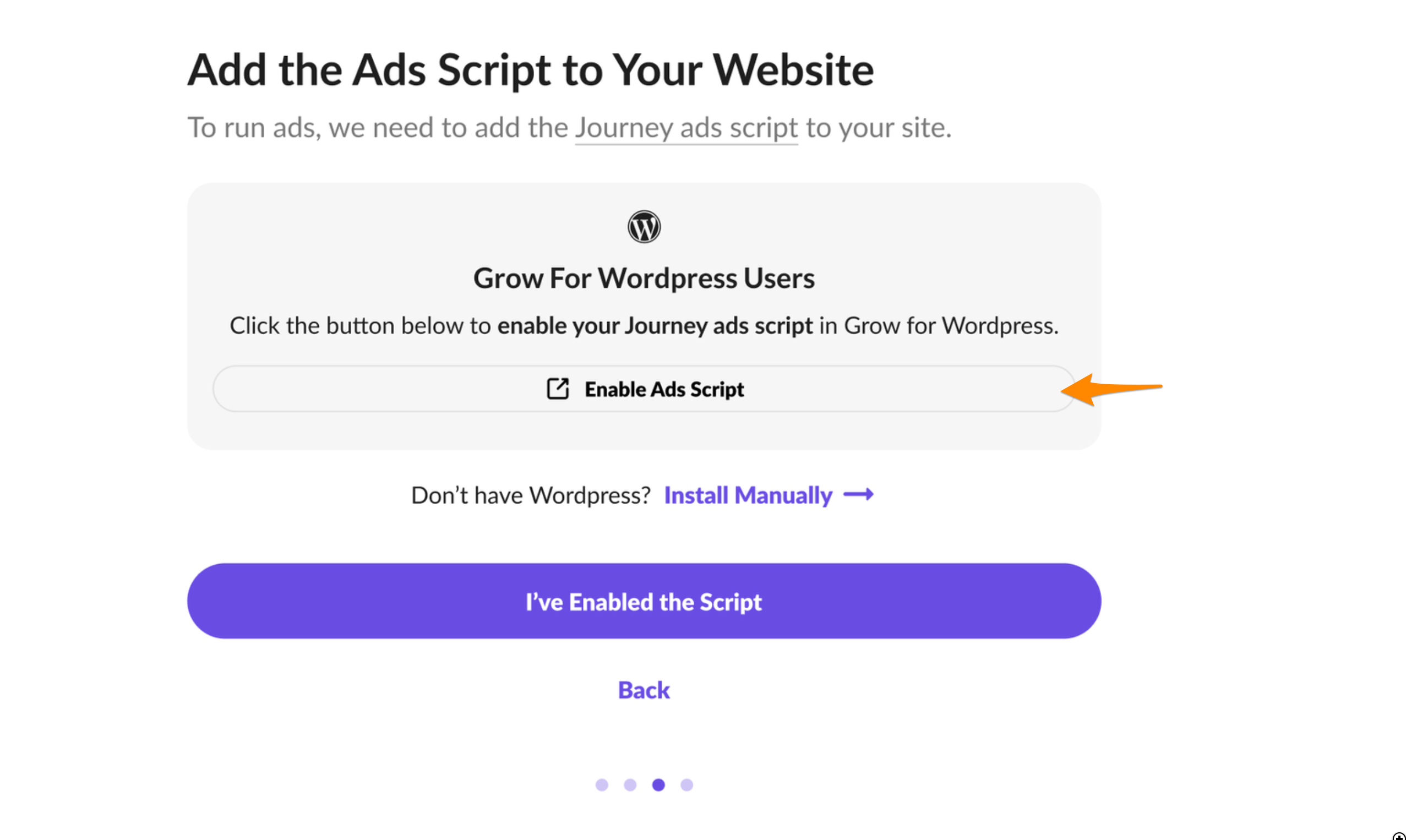
Once you have that link, you can then go to a tab where you're logged into the WordPress admin, and then just paste in the link that you've copied. Once you've done that, let me know how that goes.
0 -
Support okay the first way you said didn't work. Then, I got it to work!!! For anyone else who has this issue, I copied and pasted the last part of the url (the part after wp-admin/) and just pasted that into my url and for some reason that did the trick. So, thank you!
0 -
Thanks for everyone's help! I couldn't figure out how to change the OG code, but installing the Grow Plugin and clearing my cache seemed to work. Cheers!
0 -

I'm having a similar problem…
The script is enabled and is loading on the page but I can't get past the script check step. It always says “We can't seem to find your ad script.” We've cleared all the caches and gone through every step in the troubleshooting guide but I can't get past that step. Bigscoots has also checked everything on their end. My tech guy has also helped me in person. He says the code is there but it's not reading it for some reason. Please help!
Thank you!
0 -
Heidi Bruaw we've had a chance to review your site and we can confirm that the script has been added to your site as well. It's possible there's a firewall or security service that's preventing our dashboard from reading your site.
If you have any security plugins installed, could you try briefly disabling them and having our dashboard check again? Additionally, if you have Cloudflare, you could try disabling some of those features briefly and have our dashboard check again.
0 -
Thank you! I disabled Wordfence and it still didn't work. I don't think I have Cloudfare, at least not as a plugin.
0 -

Hi Jacob, I have the same situation
Please watch my screen video capture: https://go.screenpal.com/watch/cZfvDXVM43z
Can you please help!0 -
Heidi Bruaw thanks for following up! I spoke with the team and it sounds like the underlying problem was there is still an AdSense script loading on your site, likely coming from the Google Site Kit plugin. It appears that might have been interfering. We recommend removing AdSense or disabling AdSense from the Google Site Kit plugin and have our dashboard check again.
0 -
Peter Hoang have you tried following these steps yet?
https://journeymv.zendesk.com/hc/en-us/community/posts/24888079035419/comments/24932919059611
0 -
Hi Jacob,
I sent your message to Big Scoots and here is what they said:
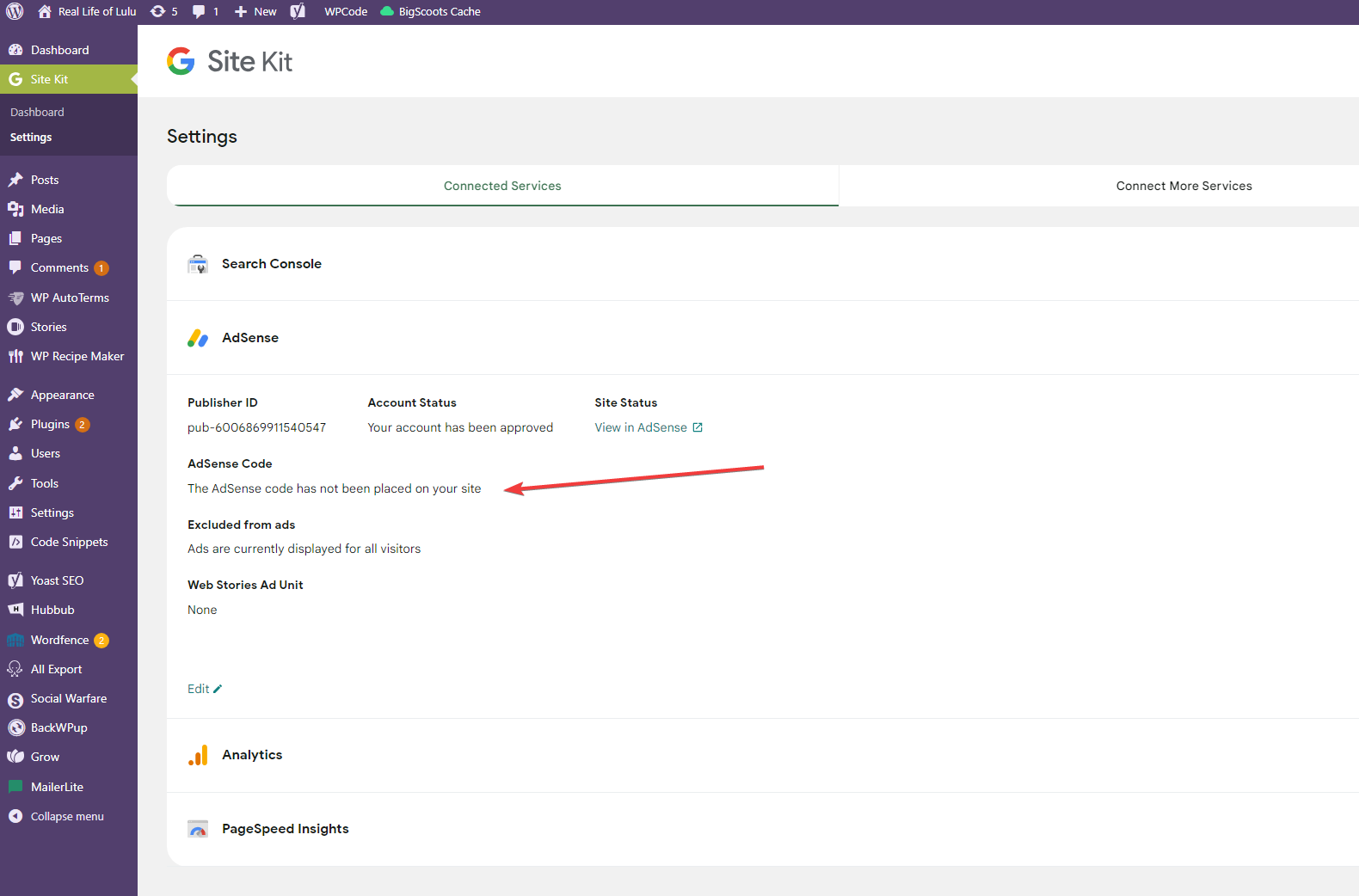
I've disabled AdSense ad placement via your Site Kit settings as shown here:
share.bigscoots.com/x2y0aDMFrl3uobm4nGuU0xUgNpTnQ3T7/LvZBUqqyba7h8U.png
I am no longer seeing AdSense code in the source for your website, you should be good to go with Mediavine from here. :)
After receiving their message, I cleared the cache and tried again to enable the ads script and it still can't find it. Any other ideas?
0 -
Yes, I did, but still did not work.
Btw, I added it manually in <head> and it worked0
Journey is Self Supported
Post is closed for comments.
Comments
35 comments